

DXTelnet needs to be working smothly, prior to making the below New Directories.
The below information will help you customize DX Telnet to use in Contest or single modes or bands, such
as RTTY, ARRL 10m, FT8, CW, etc.
The day of all of the DX Clusters using a standard set of commands is gone. A good method to get the band filters that you want, is to filter them within DXTelnet. Doing this, you will only see spots on the frequencies and modes that you wish. To do this, set up a separate Directory for the modes or bands that you are interested in, such as SSB only, Digital use, or even a single band for something like the ARRL 10m SSB Contest.
This is how my I have my directories set up to give me customized spots for the Original
All bands and modes, All bands SSB, 20M only, 40M only, and Digital Modes only.
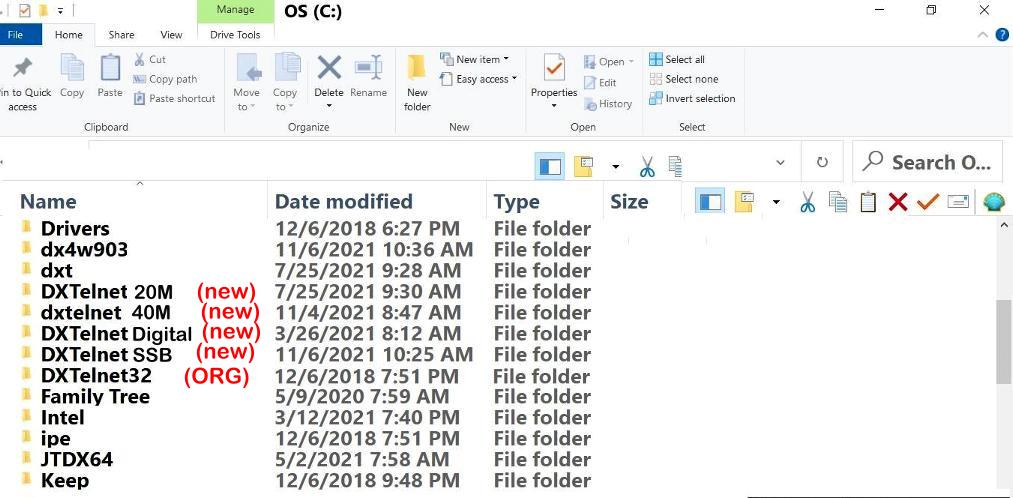
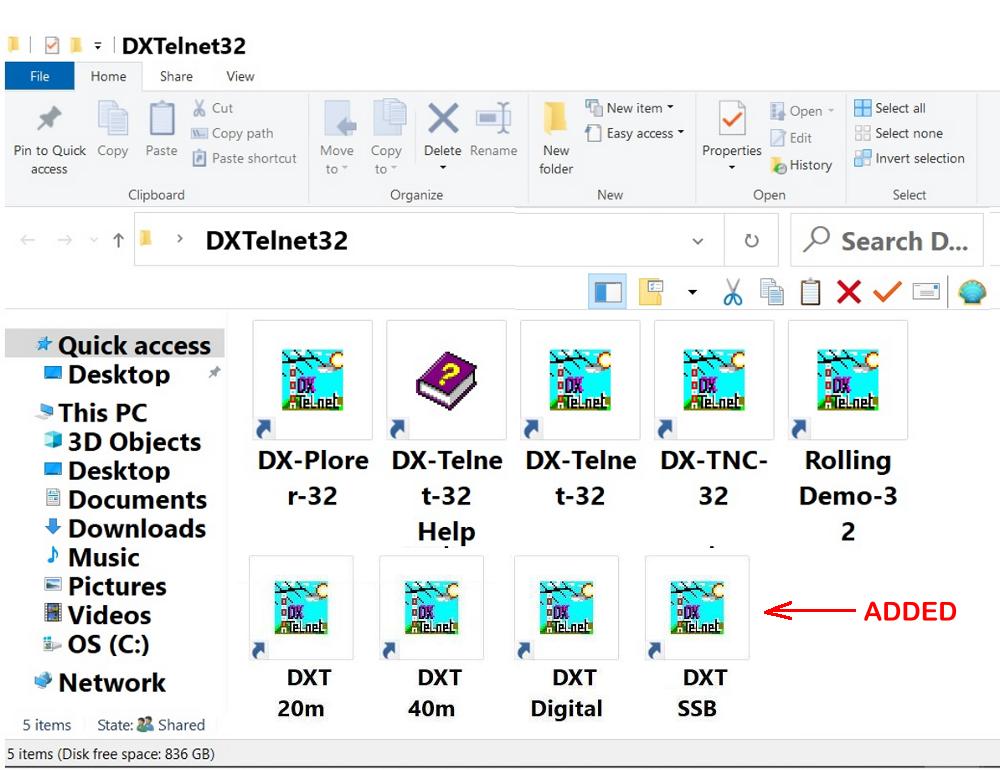
I have the Default DXTelenet32, then after I got it all going the way I wanted, I set up a separate directory C:\DXTelnet SSB 20M, DXTelnet 40m, C:\DXTelnet Digital. Make more as needed. The easiest way to do this, is to copy the complete C:\DXTelnet32, and Save as C:\DXTelnet SSB, then again to C:\DXTelnet Digital. You will need to make a new desk top icon to launch each. After opening C:\DXTelnet SSB, go into the filter section, edit it to the frequency you wish to watch and save.
When you make these seperate launch links and icons, it is best to put them in a seperate Ham Folder, or put them in the DX Telnet Folder
that is made when you Install DX Telnet. There is not a separate icon for the launch
files, so after I made the links, I just edited the links to use the DXTelnet Icon.
The Filters below shows mine set for 20m SSB only. You need to define these in each
special directory you set up. Keeping them all, but setting both the lower and upper freq
the same, makes it very easy to modify in the future.

At the bottom, is POTA, and QSO Party in the Reject Box. This keeps any spots with
this in the remarks section from showing. These filter settings need set in each
directory to customize it to show only spots for the bands and frequencies that you
want to work.
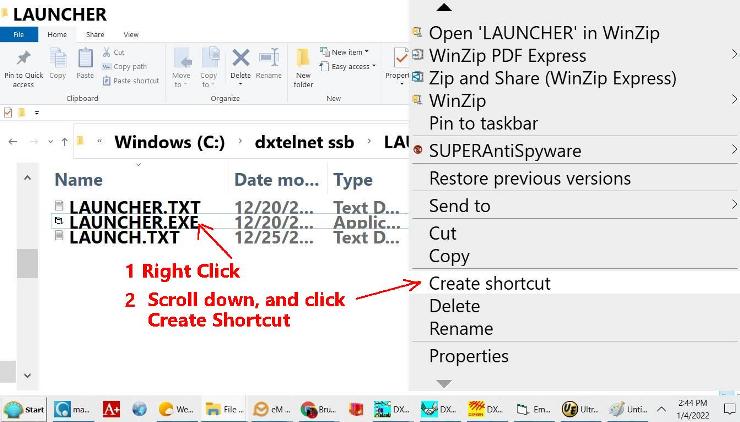
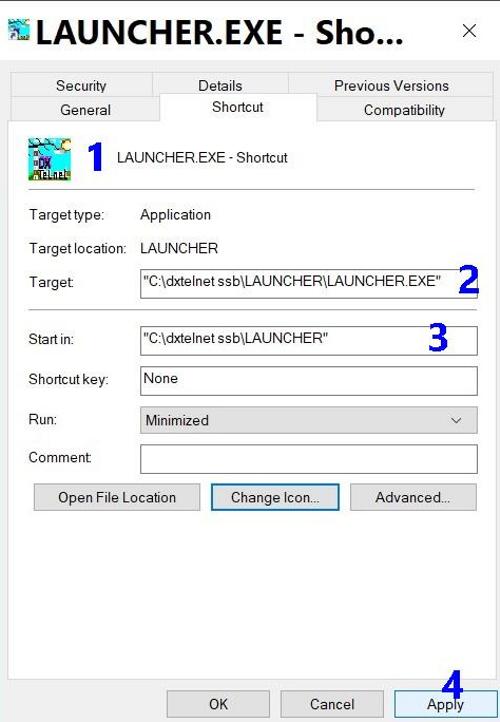
To use these separate Directories, you will need to make a separate launch Icon,
and direct it to the correct directory and exe file. To do a single DXTelnet application,
use this sample. It would be best to either make separte Ham Folder, or put the new links into
the DX Telnet Folder.

When using the DX Cluster system, you have to remember that in many cases, they loose there connection with the other areas during the weekends and big contest due to huge amount of data going through them. To keep your spots flowing, you can connect to a few in different parts of the world. This will give you the spots as soon as the station is heard, and allow you a better chance of working the station before the pileup gets too big.
While connecting to multiple clusters, to prevent disconnects from using the same callsign, use a different ssid on each of them, such as WD4NGB-1 and WD4NGB-2, on the different ones. This is done in the Session, Site List, cluster selected, Edit, Edit Script. In the line /S edit the !!!$$$$, and add- 1, and on others, -2, then, -3, etc and save. Should look like this, !!!$$$$-1, etc.
Make sure to do this to each one you are going to use, then test
the connection of each cluster by its self, prior to using them
all together with the Launcher.

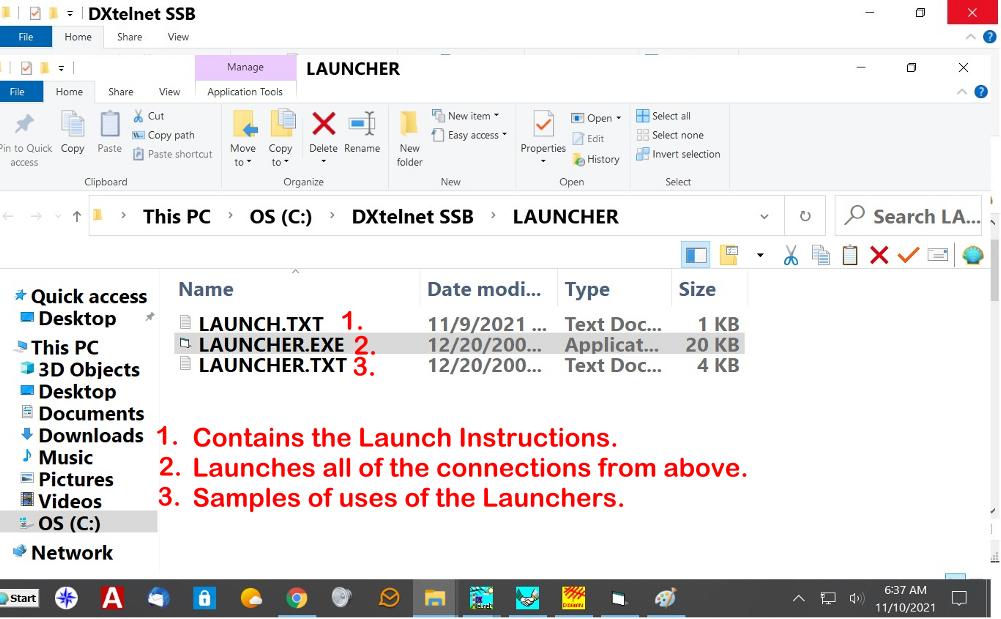




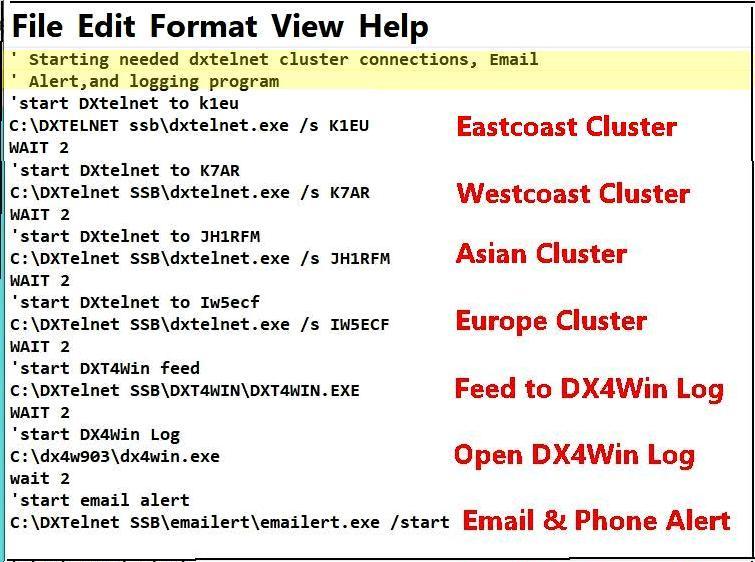
This is the Launch.txt file that launch several DX Cluster nodes.
Make sure you test each site separately first.
The last thing to set up for this, is to direct DXtelnet to send the
DX Spots to my loging program of DX4Win. Here is where that is done.
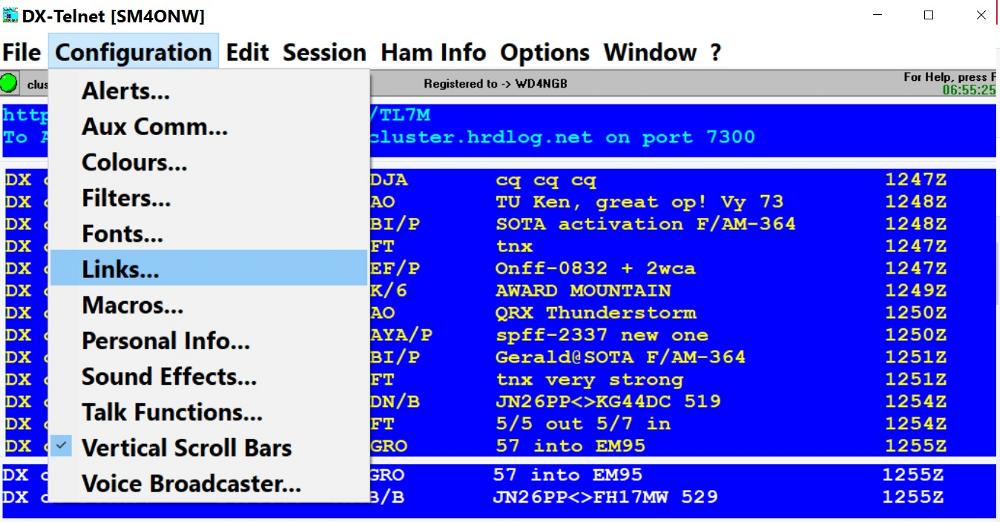

The Spot Feeder will open this window, and
if you configured the link information correctly, you
will see the spots here, that are being fed to DX4WIN Log.

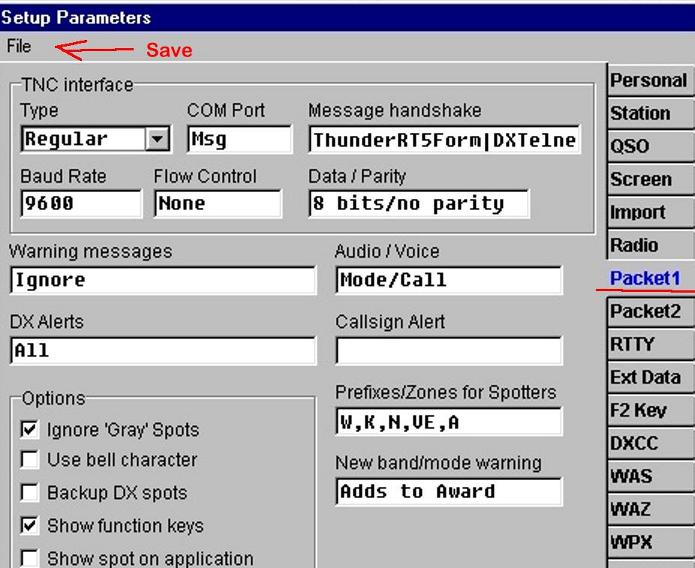
Below is what is needed to be done in DX4WIN Preferences, under Packet1.
If you want to set up a special directory for something like the above,
but not comfortable setting it up, email me and I will send you a zipped
file with everything set up.

Fab is no longer supporting this program, so if you have major tech problems, it may take me a little time sorting it out.
If you previously had a Registered copy, and lost your code, I may be able to help you. Email me with your Call Sign.
| My Time in the Army | My Other Hobby |
| My Future 40m Yagi | My Picture Page |
| Tools for the DXer | My Guestbook |
| Ham Shack Lightning Protection |
| Prevent Operating Out of Band |
| Selecting a Logging Program |
| Operating QRP from Korea |
| My QRZ Page |

